Member Database
Welcome to the Intercamhs member database! The instructions below provide basic information on using the membership database. As an authorized Intercamhs member you have access to information on every member who has agreed to be included in this password protected database.
Click Here to Access the Database
Instructions
|
Topic |
Instructions |
|
Accessing the Database |
The membership database can be accessed by the link above. A new browser window will open and you will then be prompted for your UserID and Password.
Click Here to Access the Database
|
| Obtaining User ID and Password |
To obtain your username and password, e-mail[email protected]or call +1-617-969-7100 Ext 2845. Your username and password will be e-mailed back to you. |
| Viewing & Searching the database |
Complete Database Browsing When you first enter the database it will show you the full list of members. You can scroll through the entire database by clicking on arrows in the open book icon on the left panel as shown below:
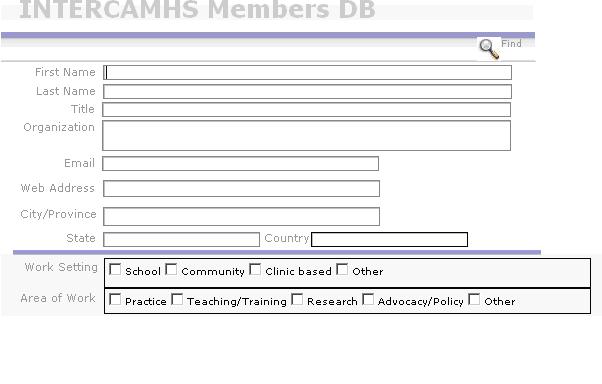
Specific Searches The database is set up so you can search any of the given fields. To begin a search click on the Magnify Glass icon (Find button) on the top right corner, as shown below:
Type in the text by which you would like to search. You can check off any of the fields you would like to include in your search. All searches default to using the and command. For example, if you type in Jane for first name and Australia as country the search will be Jane and Australia. Performing an Or Search
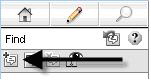
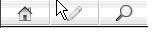
For example, you can type in Jane for first name and then click the New Request button and then type in Australia in the country field. The search will now be for Jane or Australia. For the more qualitative fields, you can type in generic words such as funding or resources the search will scan the database and pull up the specific key words. To return to viewing all the records click on the pencil icon which is the browse command, on the top left corner, as seen below:
|
| Sorting data | You can sort the data by various fields. To begin a sort click on the AtoZ icon:
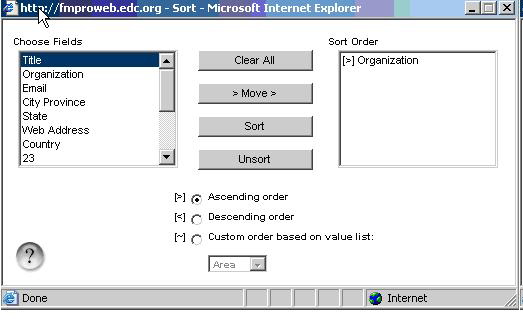
When you click on this icon it will allow you to sort by any of the fields in the Choose Fields table. In the example, shown below we have begun a sort by organization and clicked on ascending order. You can sort by multiple fields, by clicking on the field you would like to include, next clicking on >move> and the field will appear in the Sort Order box. You can then choose to have the information appear in ascending or descending order.
|
| Viewing the database | You can view the database in three modes:
|
| Printing from the database | At any time while using the database, you can print what you see on your screen by selecting Print from the File menu of your Internet browser software. |
| Updating your profile |
For security reasons, individuals will not be able to update their data online, however, we would like to keep information in the database as current as possible! If you have any updates to send, please send the new information to[email protected]and we will make the changes for you. |
| Questions & Suggestions |
If you have any questions or suggestions about the database please send a note to[email protected]
|